
Train a Model
In this step you train a model on your dataset. Open your project and click Train (step 3) in the project menu on the left.
Note: the screens on this page come from an audio anomaly detection project. The settings, checks and results you see depend on your project's task type, so use this page as a guide and follow what appears for your own project.
1. Click Start Training
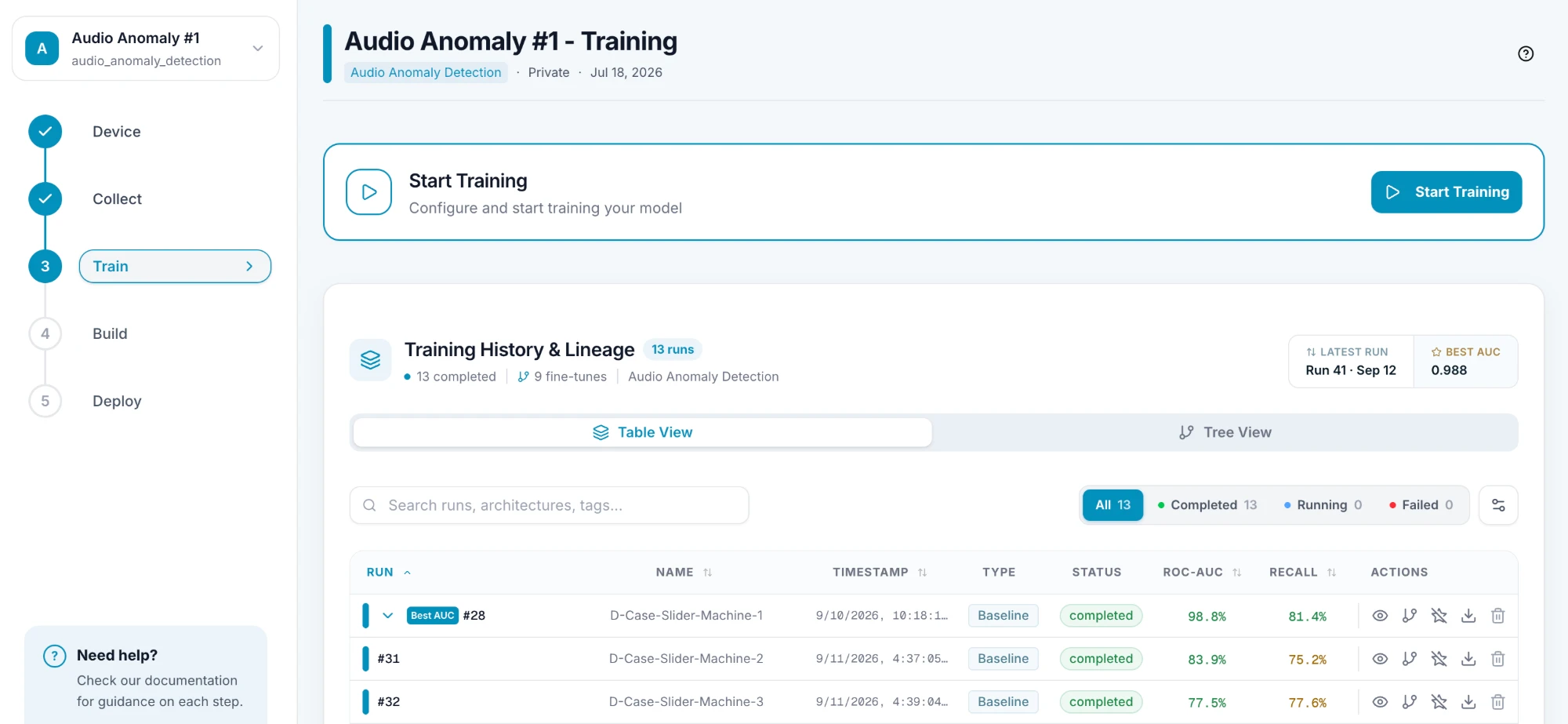
On the Training page, click Start Training. Below it, Training History & Lineage lists your past runs (see step 5).
2. Configure the training
The Training Setup dialog has three steps: Configuration, Confirm and Execution. Start with the configuration:
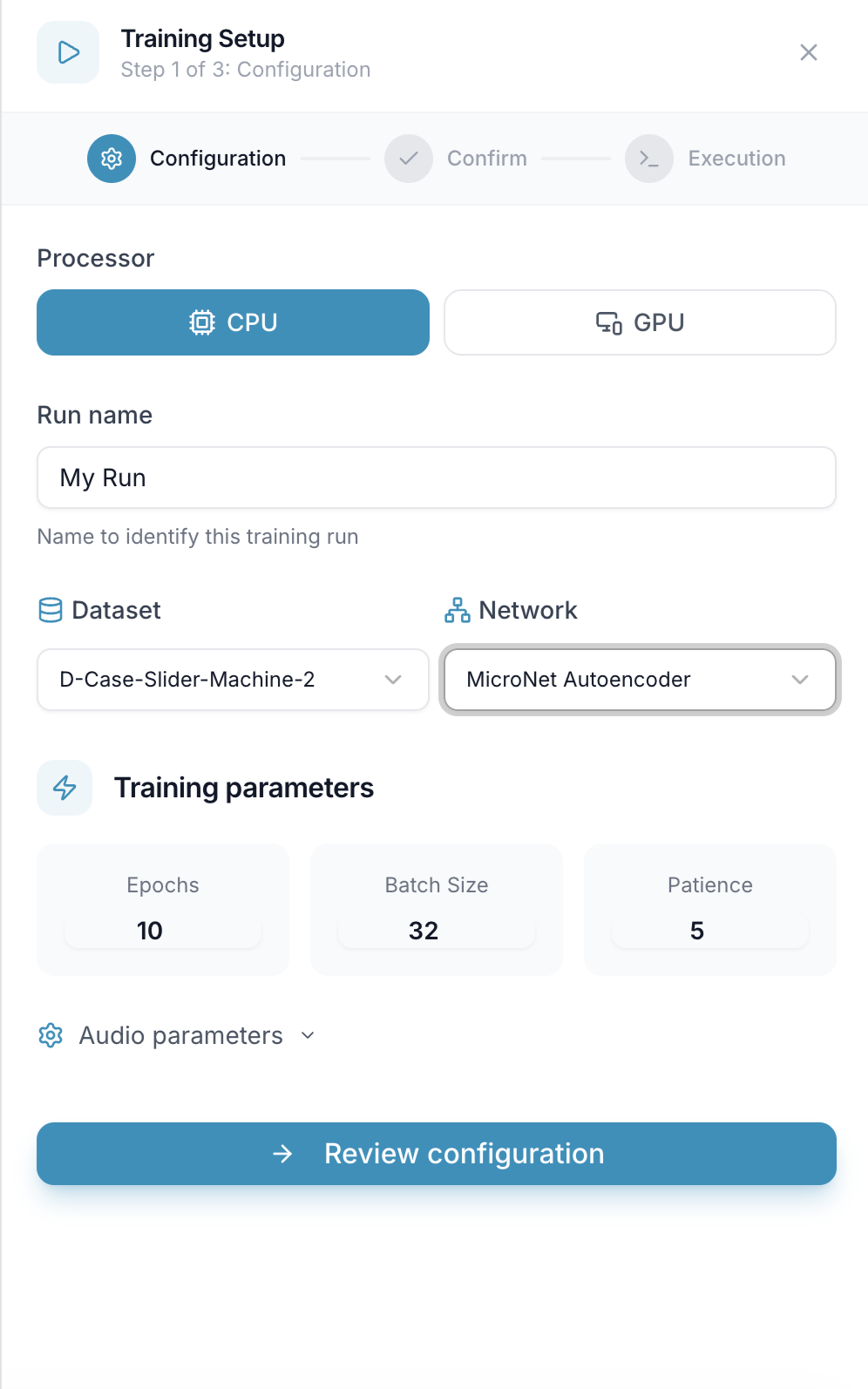
- Processor — CPU or GPU. Training uses your plan's compute minutes (see Before You Start).
- Run name — a name to identify this run. It's required.
- Dataset — the data to train on. It's filled in with your selected dataset.
- Network — the model to train (here, MicroNet Autoencoder).
- Training parameters — Epochs, Batch Size and Patience. The defaults are a good starting point.
- Audio parameters — settings specific to audio. Expand the section to see them:
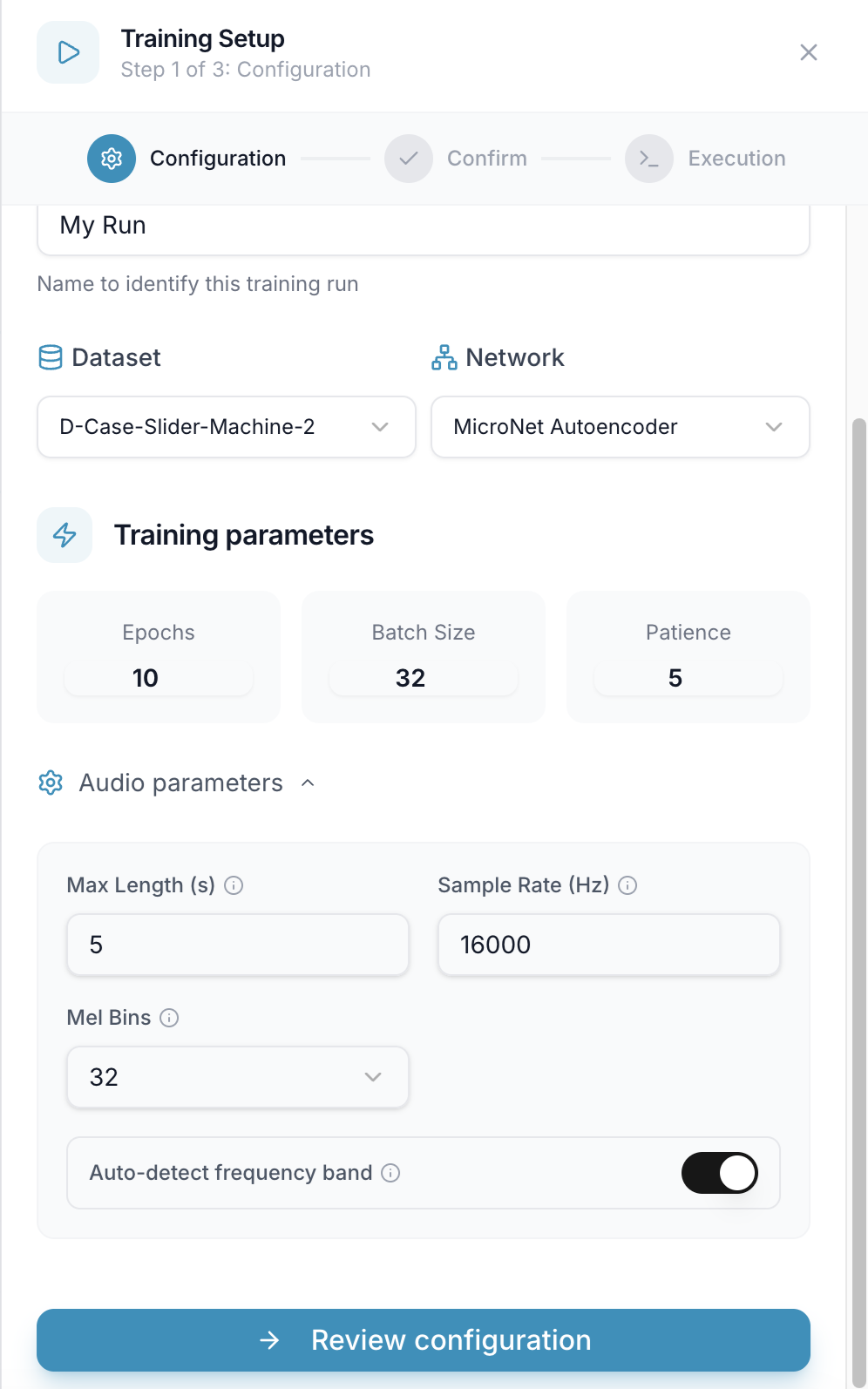
Here they are Max Length, Sample Rate, Mel Bins and Auto-detect frequency band. Click the ⓘ icon next to a setting for an explanation. Other task types show different parameters.
When you're done, click Review configuration.
3. Confirm
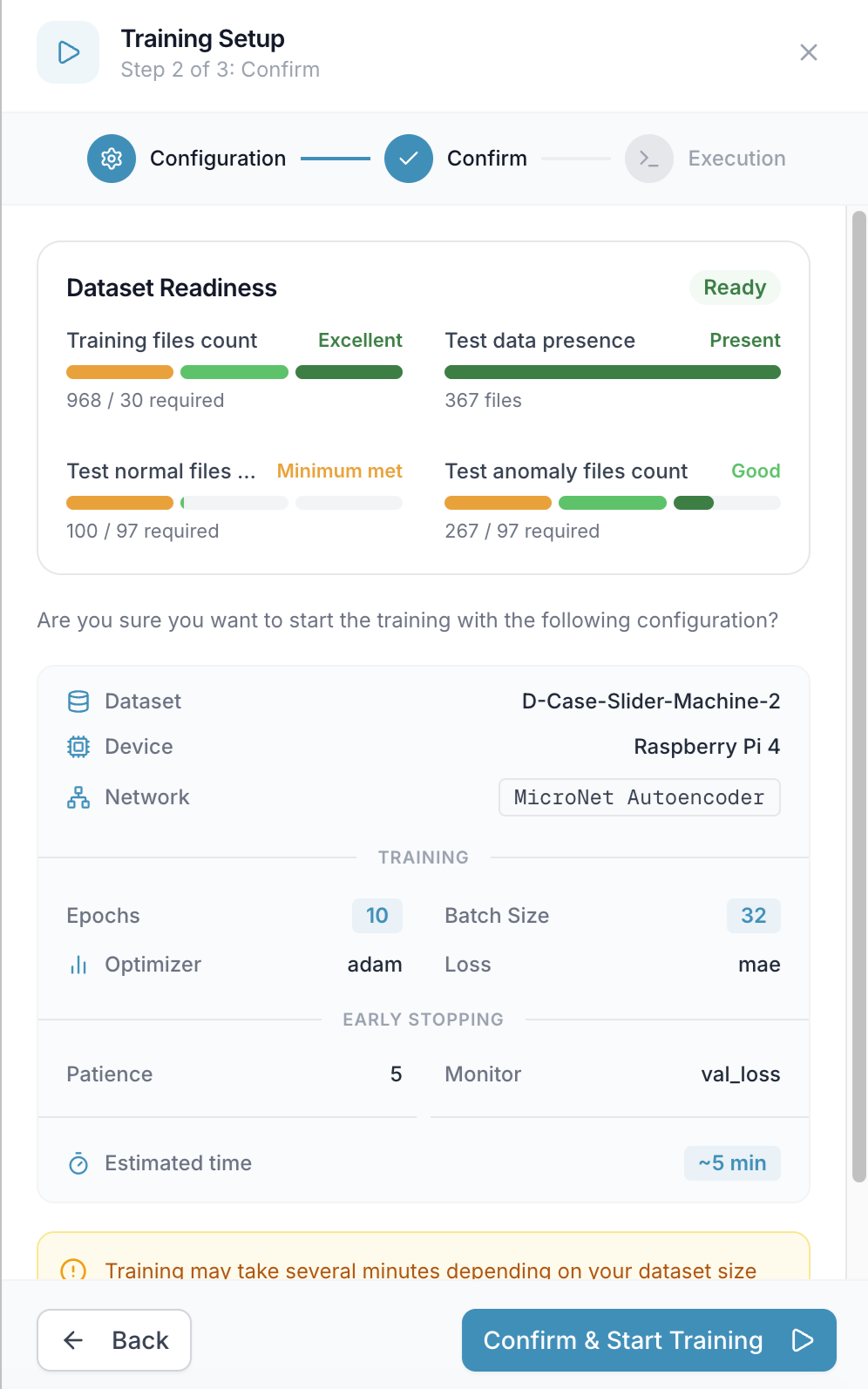
For audio anomaly detection, the Dataset Readiness panel first checks that your dataset has enough files, such as training files and normal and anomaly test files. Each check shows how it's doing (for example Minimum met, Good or Excellent), and the panel shows Ready when you can go ahead.
Below it is a summary of your dataset, device, network, training settings and the estimated time. Click Back to change something, or Confirm & Start Training to launch the run.
4. Follow the training
The Execution step shows live logs while the model trains.
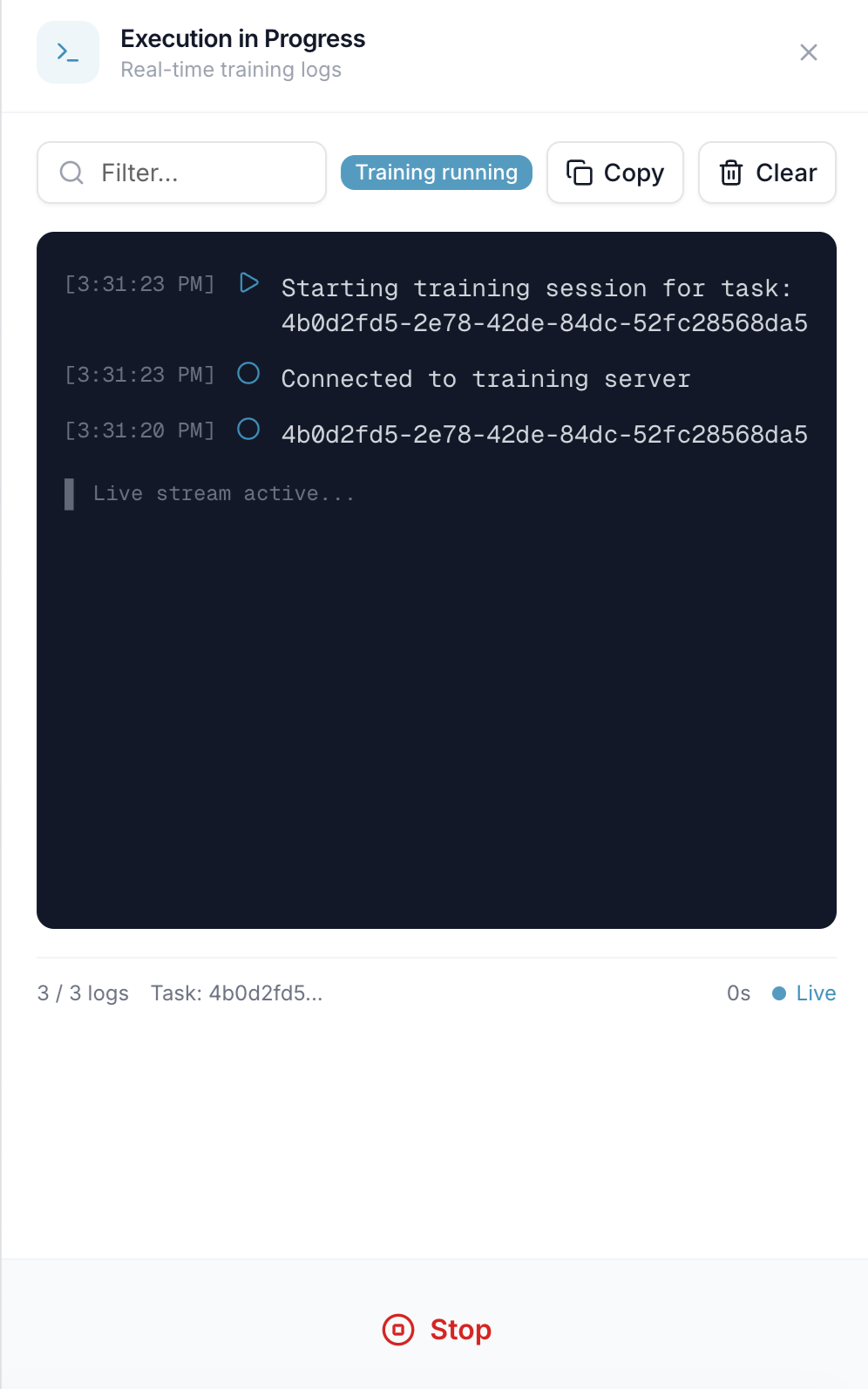
Use Filter to search the logs, Copy to copy them, and Clear to empty the view. Click Stop to cancel the run.
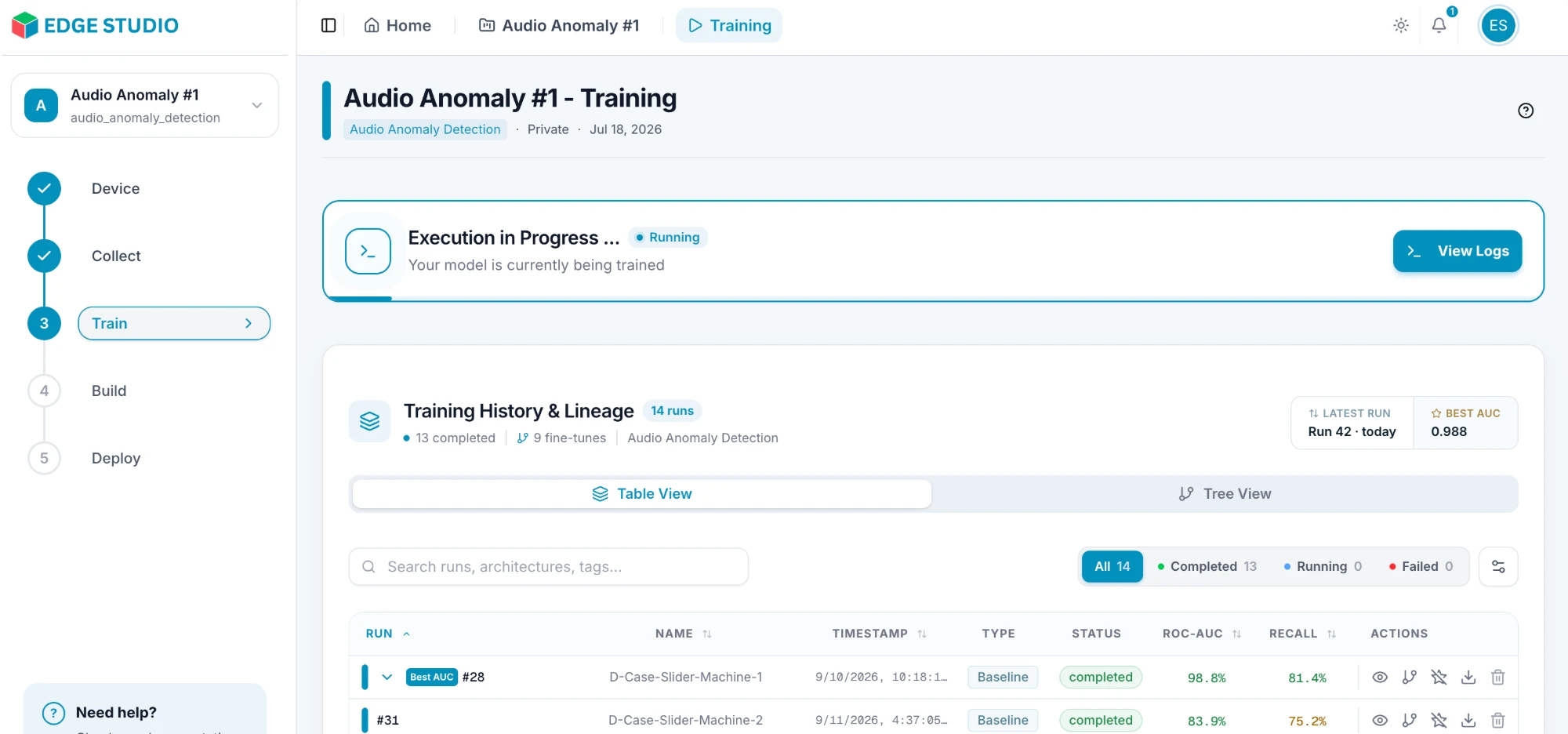
While a run is in progress, the Training page shows Execution in Progress with a View Logs button to reopen the logs.
5. Review your results
Finished runs appear in Training History & Lineage. Switch between Table View and Tree View, search runs, and filter by status (All, Completed, Running, Failed).

A Baseline is a run trained from scratch. A Fine tuning run is trained starting from an earlier run, and is shown nested under it. The columns show each run's status and key metrics (here ROC-AUC and Recall). Use the icons in the Actions column to:
- View details — open the run's results.
- Fine-tune — start a new run from this one.
- Add to favorites — mark the run as a favorite.
- Download PDF — download a report of the run.
- Delete — remove the run.
Open a run with View details to see how well it performed:
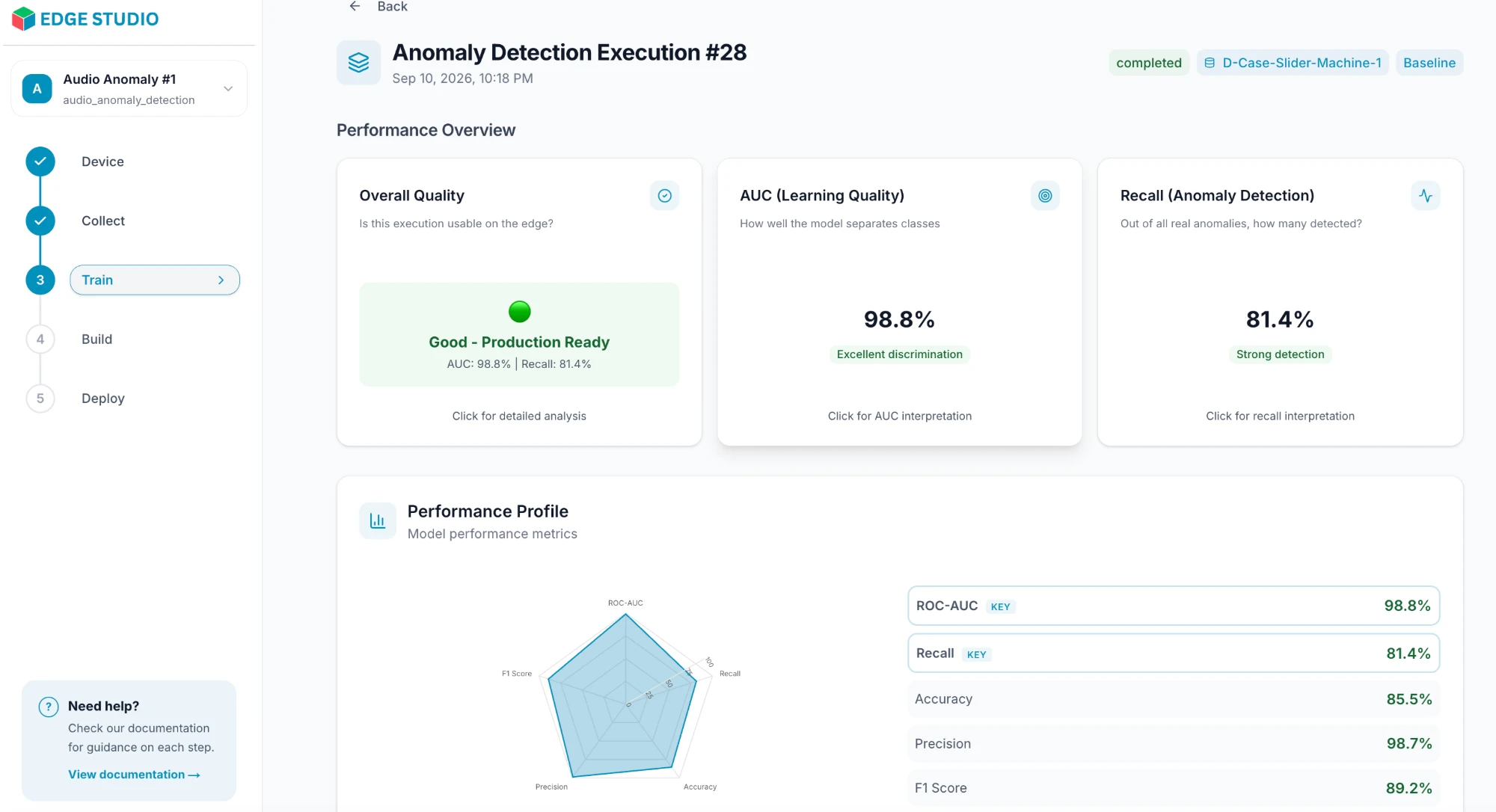
The Performance Overview summarizes the run's overall quality, and how well the model separates normal from anomalous data (AUC) and how many real anomalies it detected (Recall). The Performance Profile below lists all the metrics. The metrics shown depend on the task type.