
Build for Your Device
In this step you package a trained model so it can run on your device. Open your project and click Build (step 4) in the project menu on the left.
Note: the options in this step can vary with your device and task type. The screens here come from an audio anomaly detection project built for a Raspberry Pi 4.
1. Click New Build
The Build page shows the device you're building for, with its name and your custom name for it. Click New Build.
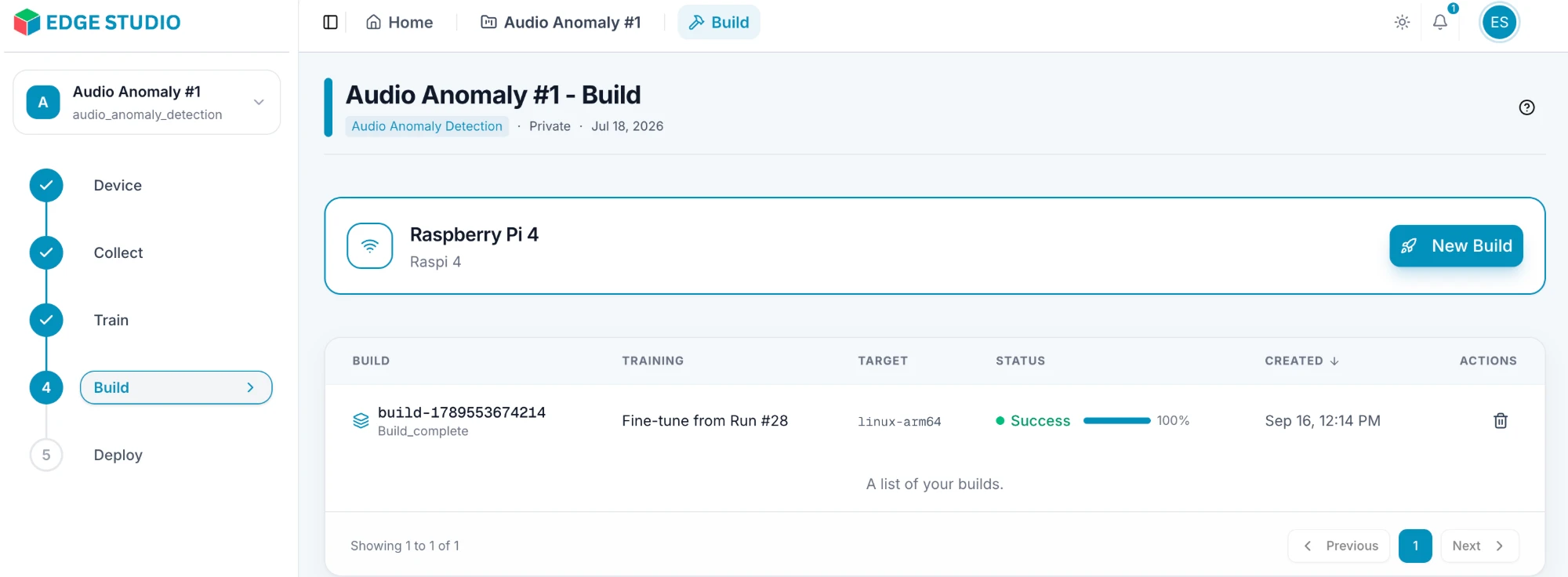
You need a selected device to build. If the page says No device selected, go back to Create a Device and choose Use Device first.
Below the button, the list shows your previous builds: the build name, the training it was made from, the target platform (for example linux-arm64), its status, and when it was created. Use the trash icon in the Actions column to delete a build.
2. Select a training
The Select Training dialog asks which trained model to build.
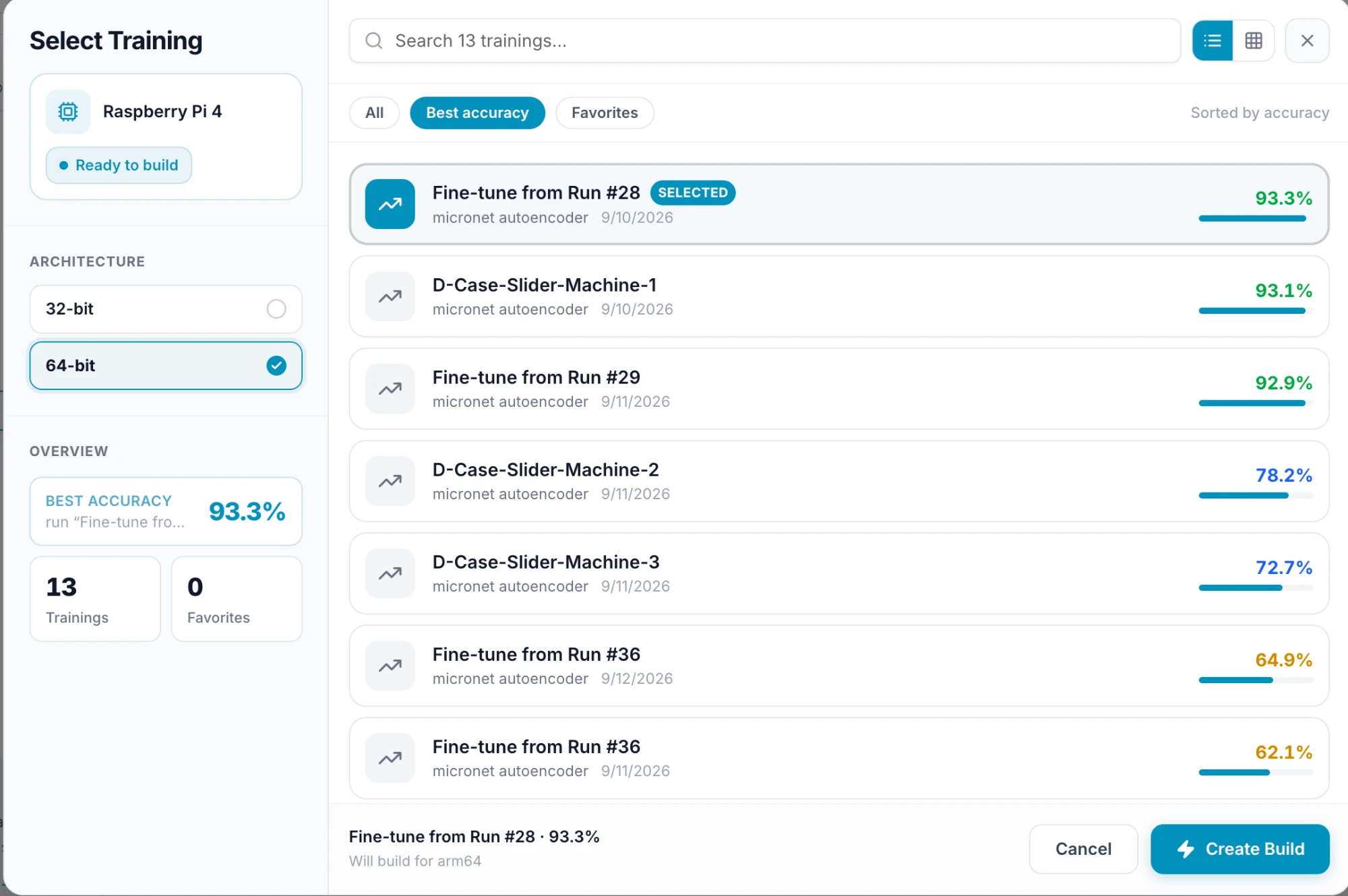
On the left:
- Your device, with a Ready to build label.
- Architecture — for Linux devices, choose 32-bit or 64-bit. 64-bit is selected by default, and some boards support only one option. The dialog confirms your choice at the bottom, for example "Will build for arm64".
- Overview — your best accuracy, and how many trainings and favorites you have.
On the right:
- Your trainings are listed with their network, date and accuracy score. Search them by name, and switch between the list and grid views.
- Filter with All, Best accuracy (sorted by accuracy) or Favorites. You can mark a run as a favorite from the Training page (see Train a Model).
- Click a training to select it. It is marked SELECTED, and its name and score appear at the bottom.
Click Create Build to start, or Cancel to close the dialog.
3. Wait for the build
Your new build appears in the list, and its status and progress update until it shows Success at 100%. Once it succeeds, the model is ready to deploy to your device in the next step, Deploy.