
Deploy to Your Device
This is the last step: sending your build to your device. Open your project and click Deploy (step 5) in the project menu on the left. Before you start, make sure you have a successful build (see Build for Your Device).
1. Download the Edge Studio Desktop app
Deploying to a device requires the Edge Studio Desktop app, because it needs local access to your hardware. It can't be done from the browser.
The Deploy page detects your operating system (for example macOS detected) and offers the matching download, with the app version shown below the button.
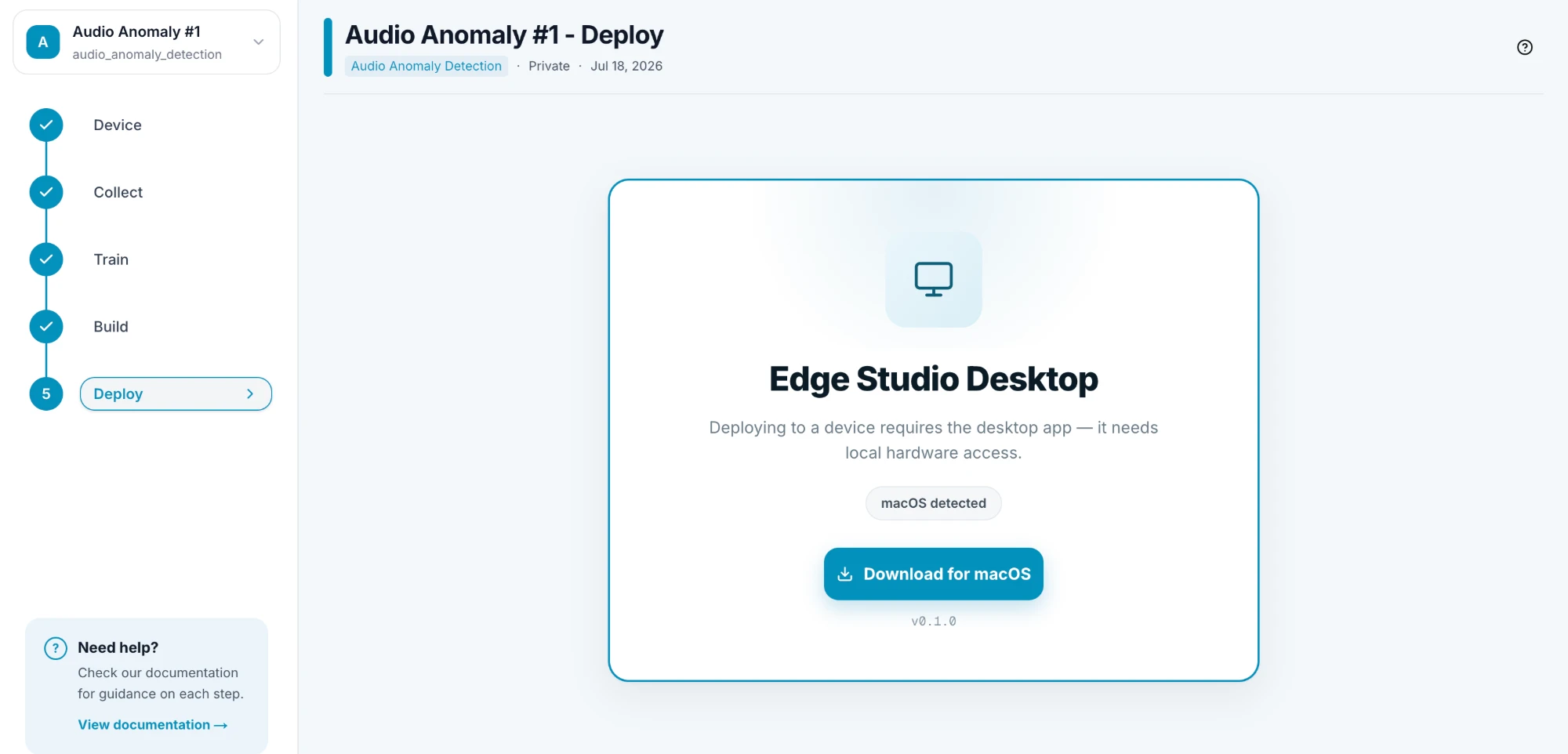
The app is available for Windows, macOS and Linux. On Linux you can pick the package for your distribution: Debian / Ubuntu, Fedora / RHEL, Arch Linux, or an AppImage for other distributions. If the app is already installed, the button opens it instead of downloading it again.
2. Deploy from the desktop app
Use the Edge Studio Desktop app to deploy your build to your device.
Coming soon: documentation for Edge Studio Desktop is on its way. This page will be updated with the deployment steps as soon as it's available.