
Step By Step/Create a Project
Create a Project
Everything in EdgeStudio happens inside a project, so creating one is your first step.
1. Click New project
On the Dashboard, find the Projects card and click New project.

The project is created in the workspace you're currently in, Personal or an Organization, so check the workspace switcher first.
2. Fill in the New Project dialog
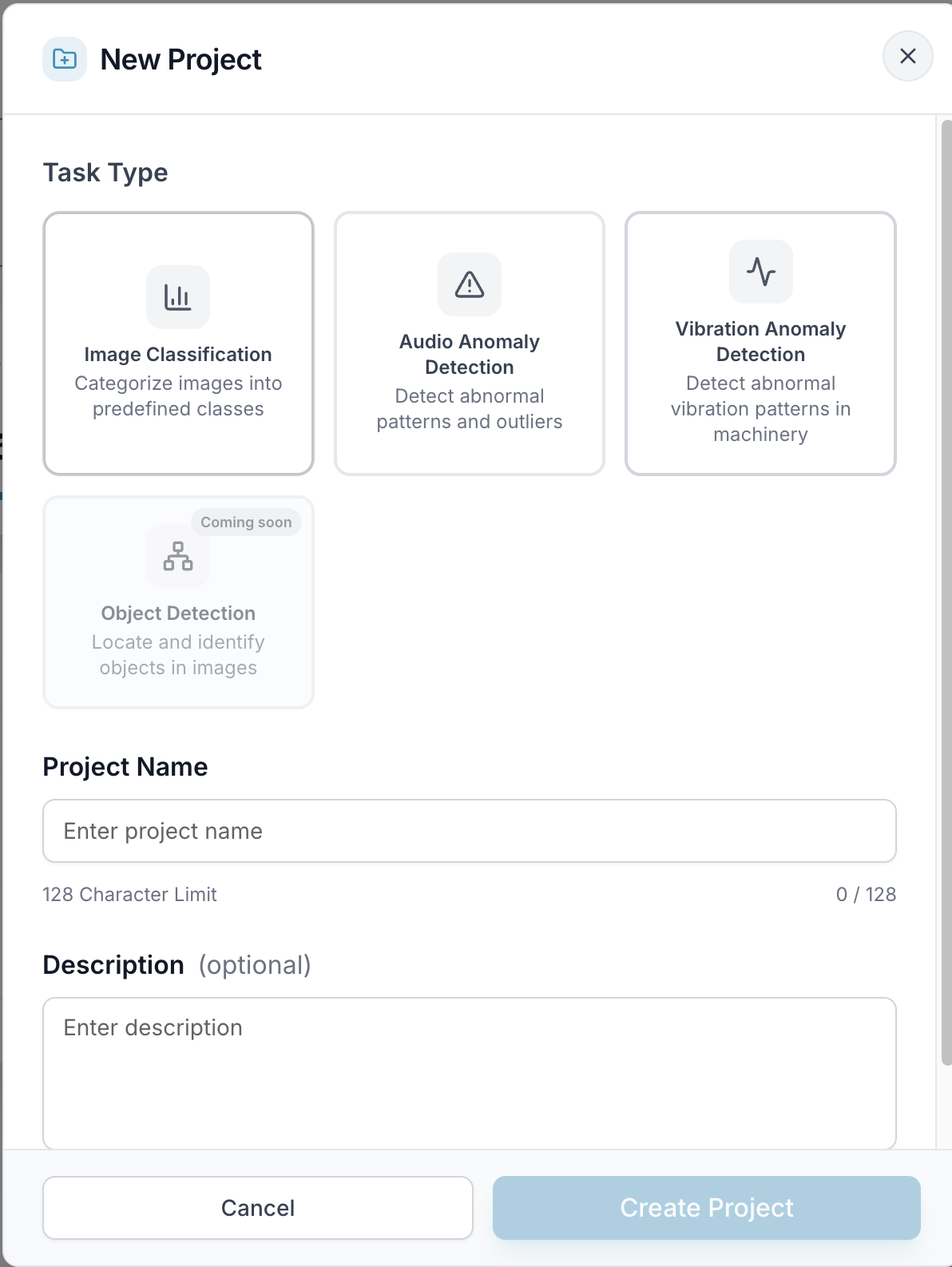
- Task Type (required) — choose what you want to build: Image Classification, Audio Anomaly Detection, or Vibration Anomaly Detection. Object Detection is coming soon. The task type can't be changed after the project is created.
- Project Name (required) — between 3 and 128 characters.
- Description (optional) — up to 256 characters.
3. Click Create Project
Create Project becomes available once you've picked a task type and entered a name. Your new project then appears in the Projects table. Click it to open it and start working on it: Create a Device, Collect Data, and Train a Model.