
Collect Data
In this step you bring the data you'll train on into a dataset. Open your project and click Collect (step 2) in the project menu on the left.
1. Click Add Dataset
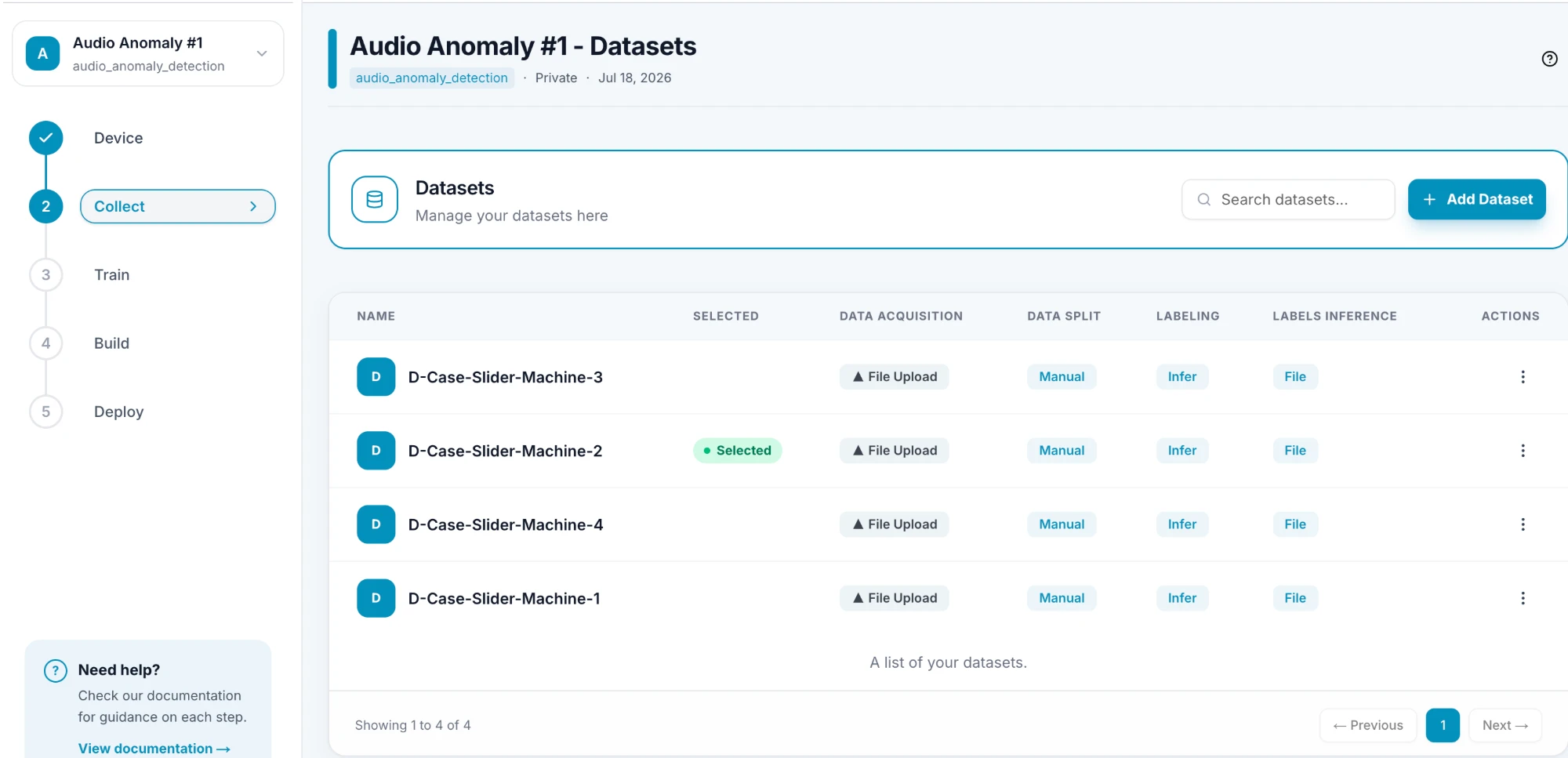
On the Datasets page, click Add Dataset.
2. Create the dataset
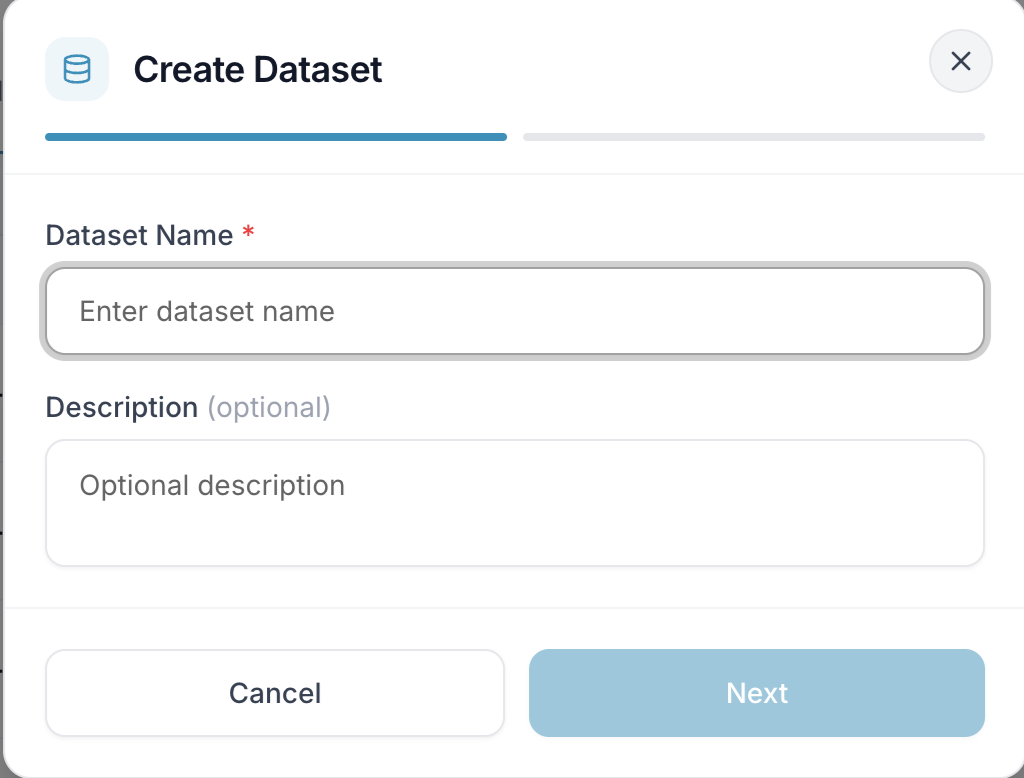
The Create Dataset dialog has two steps. First, give the dataset a Dataset Name (required) and, if you like, a Description, then click Next.
Second, choose how your data is organized. The options depend on your project's task type, so follow the steps you see on screen. This example is an audio anomaly detection dataset: the data is split manually (you choose which files go to training and which to testing), and each label is inferred from the file name. Other task types may offer different choices.
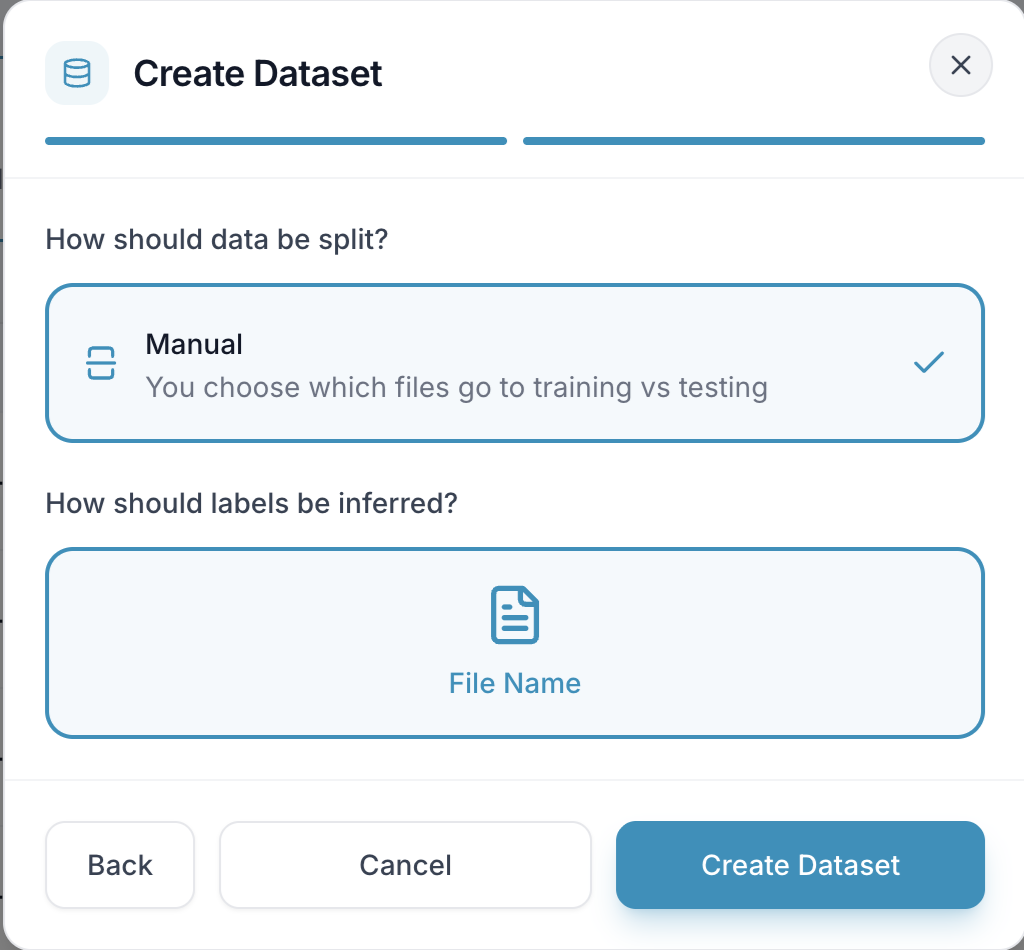
Click Create Dataset to finish. Use Back to return to the first step, or Cancel to close the dialog.
3. Select your dataset
Your datasets are listed with how each one was set up (data acquisition, data split, labeling and labels inference). Selecting the right dataset is important: the Selected dataset is the one used by default when you set up training, so check it before you move on.
Open the ⋮ menu in the Actions column to manage a dataset:
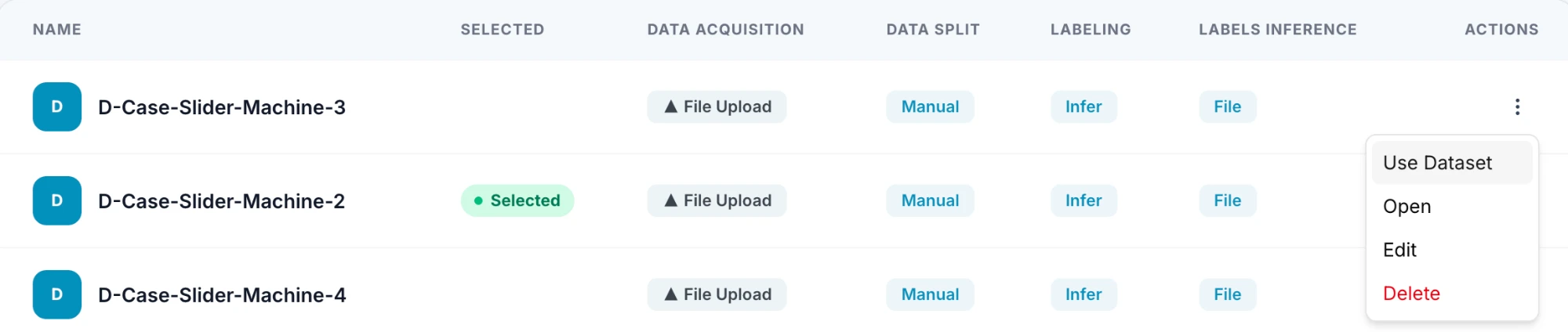
- Use Dataset — select it for your project.
- Open — go to its upload page to add files.
- Edit — change its details.
- Delete — remove it.
4. Upload your files
Choose Open on your dataset to reach the Upload Files page. The page adapts to your task type, including the accepted file formats, so follow what you see on screen. In this audio anomaly detection example:
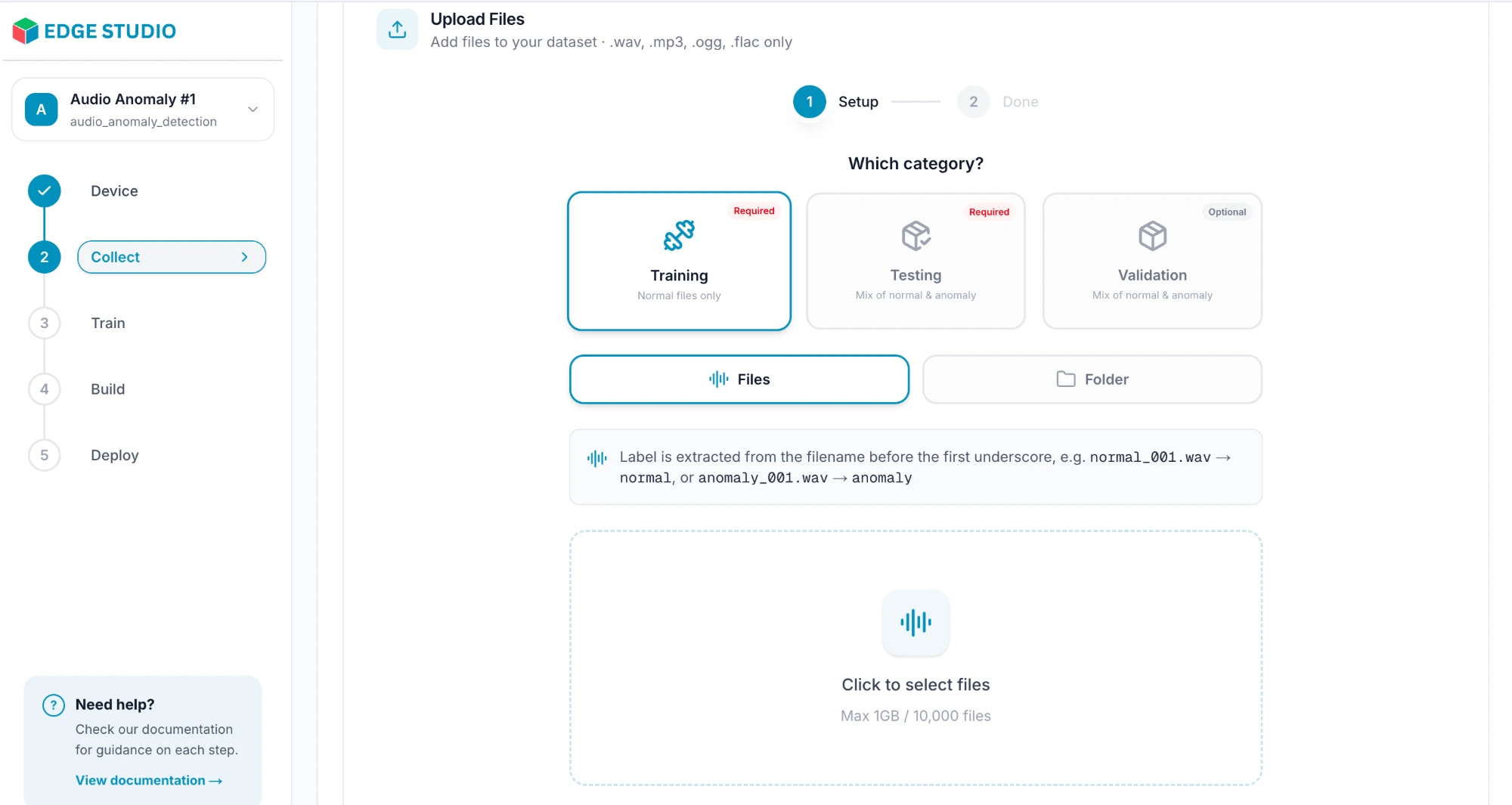
- Which category? — pick where the files go. Here, Training (required) takes normal files only, Testing (required) takes a mix of normal and anomaly files, and Validation (optional) takes a mix of normal and anomaly files.
- Files or Folder — upload individual files, or a whole folder.
- Label hint — a note explains how labels are read. Here the label comes from the file name before the first underscore, so
normal_001.wavis labelednormalandanomaly_001.wavis labeledanomaly. - Upload area — click to select your files. The accepted formats are listed at the top of the page (here
.wav,.mp3,.ogg,.flac), along with the size limit (here 1 GB and 10,000 files per upload).
When the upload finishes, the page moves to the Done step.