
Step By Step/Create a Device
Create a Device
A device is the edge hardware your model will run on. Add it to your project before you train and deploy.
1. Click Add Device
Open your project and click Device (step 1) in the project menu on the left. On the Devices page, click Add Device.
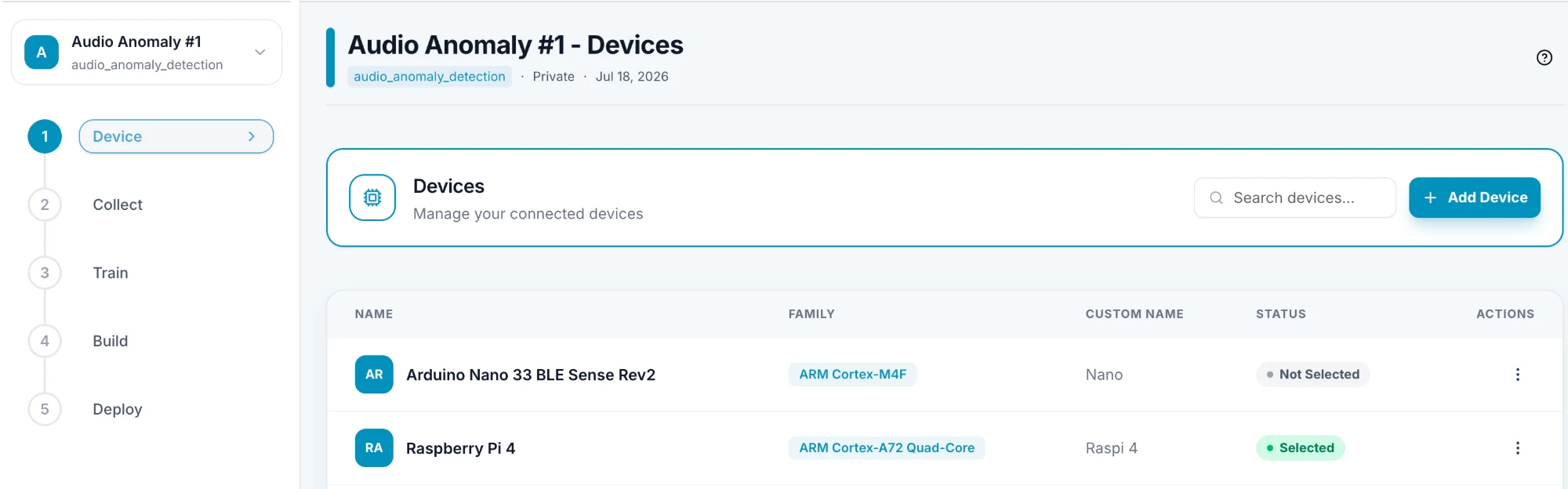
2. Fill in the Create Device dialog
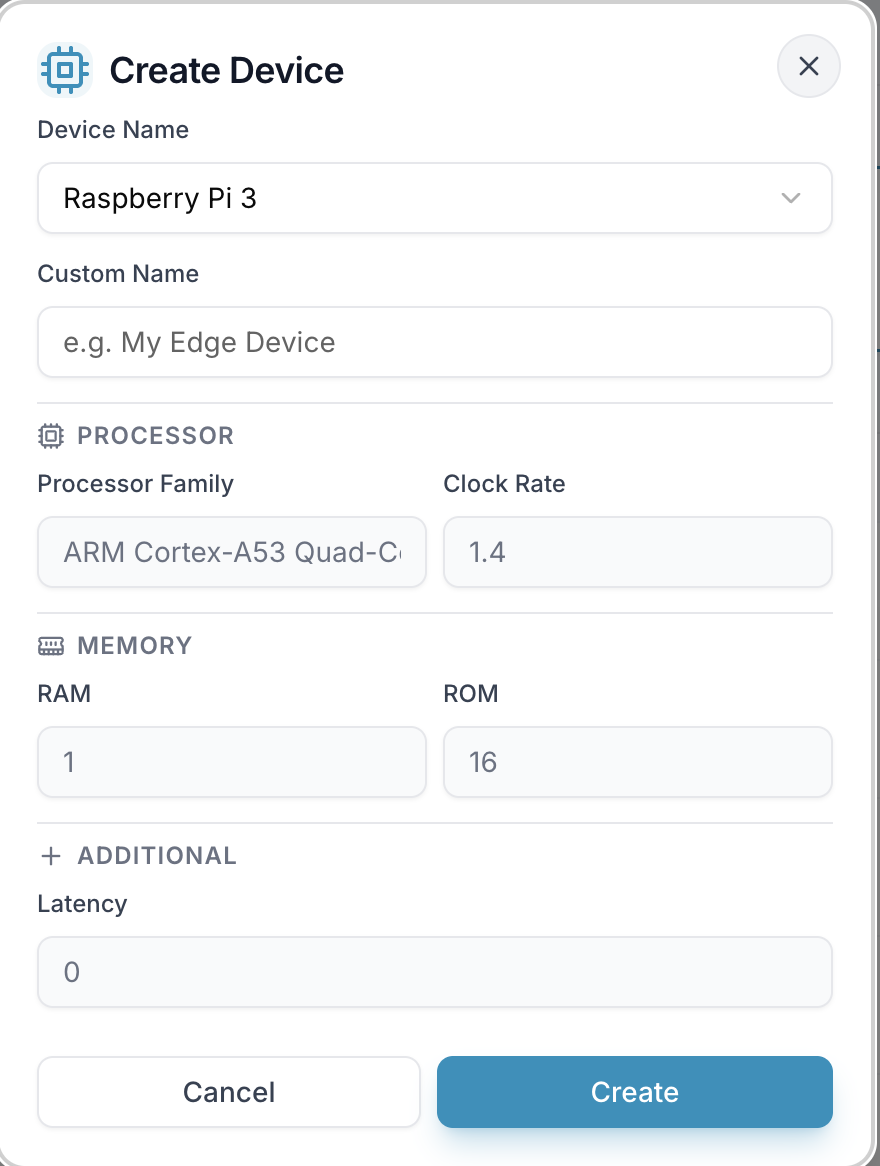
- Device Name — pick your board from the list. If it isn't listed, choose + Custom Device and enter its name.
- Custom Name — a name of your choice for this device (up to 50 characters), for example "My Edge Device".
- Processor, Memory and Additional — filled in automatically when you pick a board from the list. For a custom device, enter these yourself.
Click Create to add the device, or Cancel to close the dialog.
Your plan sets how many devices you can add. If you reach the limit, EdgeStudio tells you so instead of creating the device.
3. Choose the device to use
Your devices are listed with a status: Selected for the device your project uses, Not Selected for the others. Open the ⋮ menu in the Actions column to manage a device:
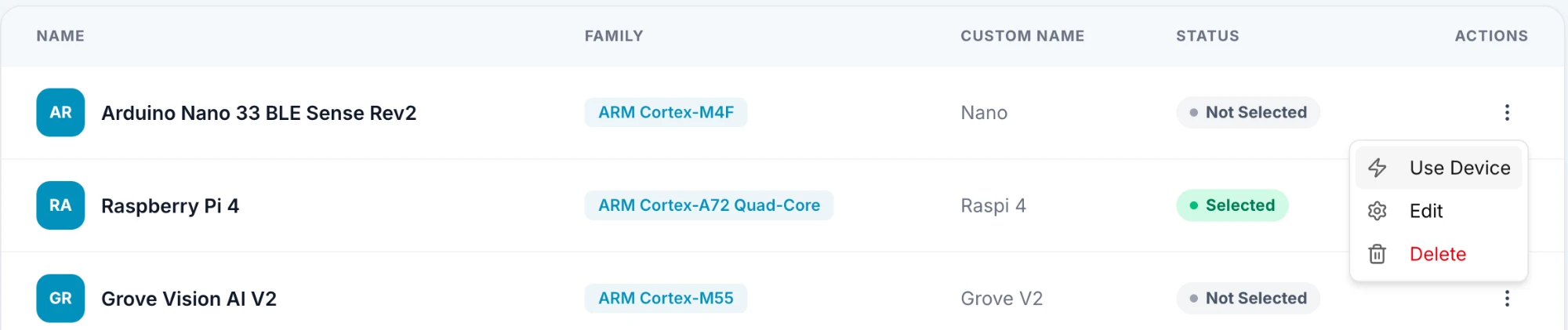
- Use Device — make it your project's default device.
- Edit — change its details.
- Delete — remove it.